Unix Tutorial #1: Navigating the directory tree
Note
Topics covered: Directories, navigation
Commands used: pwd, cd, ls
Overview
Like other operating systems, Unix organizes folders and files using a directory tree - also known as a directory hierarchy, or directory structure. At the top of the hierarchy is a folder called root, written as a forward slash (/). All other folders (also known as directories) are contained within the root folder, and those folders in turn can contain other folders.
Think of the directory hierarchy as an upside-down tree: root is the base of the tree, and all of the other folders extend from it, just as branches extend from the trunk.
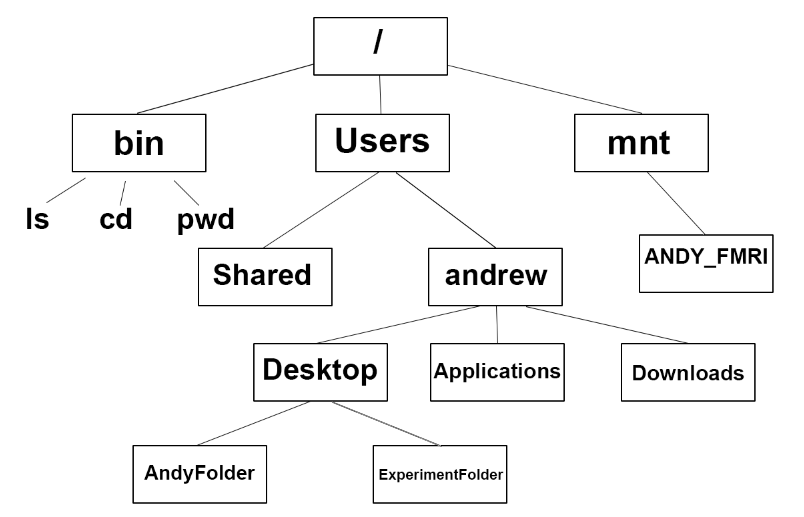
Root, symbolized by a forward slash (/), is the highest level of the directory tree; it contains folders such as bin (which contains binaries, or Unix commands such as pwd, cd, ls, and so on), mnt (which shows any currently mounted drives, such as external hard drives), and Users. These directories in turn contain other directories - for example, Users contains the folder andrew, which in turn contains the Desktop, Applications, and Downloads directories. This is how folders and files are organized within a directory tree.
To navigate around your computer, you will need to know the commands pwd, cd, and ls. pwd stands for “print working directory”; cd stands for “change directory”; and ls stands for “list”, as in “list the contents of the current directory.” This is analogous to pointing and clicking on a folder on your Desktop, and then seeing what’s inside. Note that in these tutorials, the words “folder” and “directory” are used interchangeably.
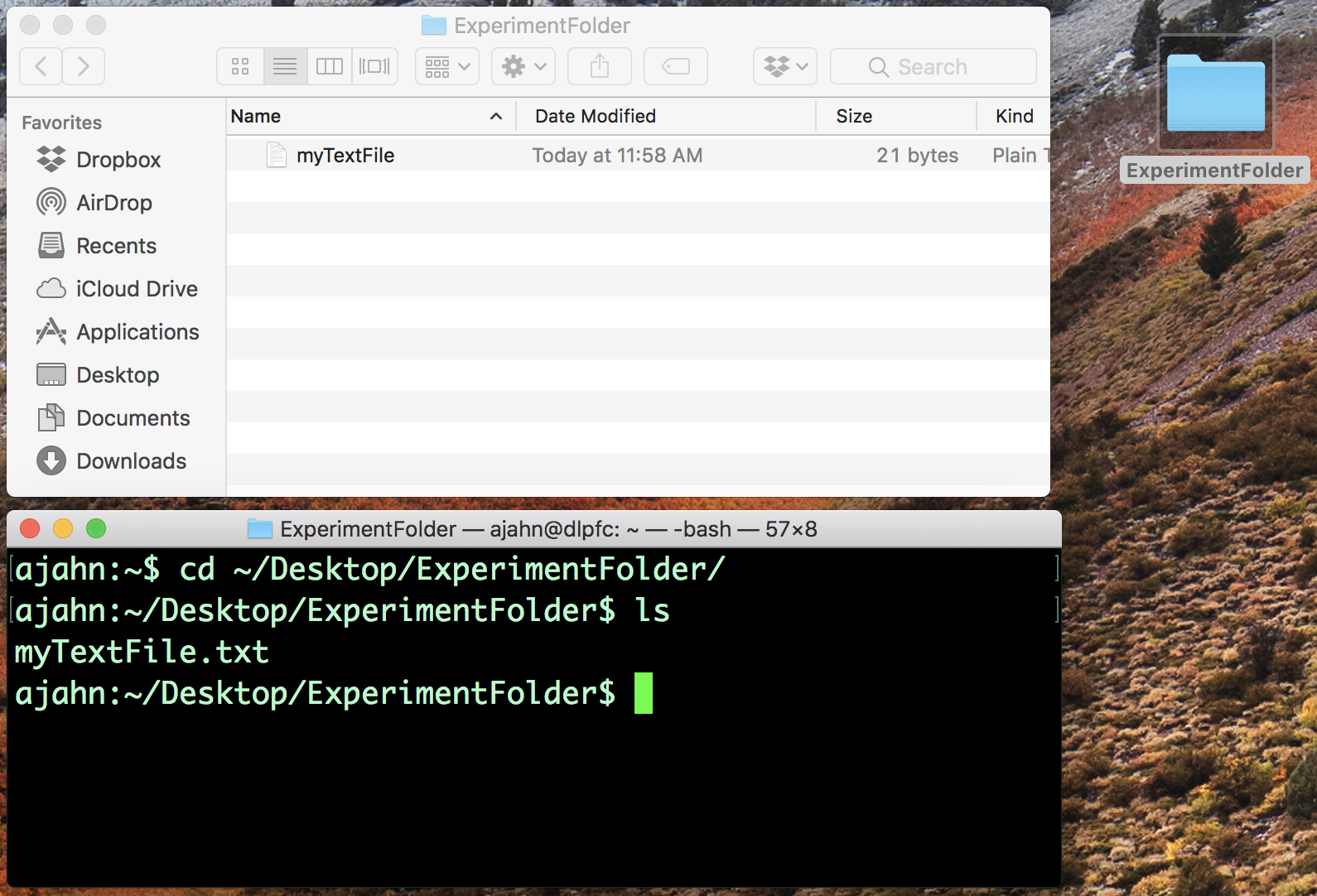
Navigation in Unix is the same thing as pointing and clicking in a typical graphical user interface. For example, if you have the folder “ExperimentFolder” on my Desktop, you can point and double-click to open it. You can do the same thing by typing cd ~/Desktop/ExperimentFolder in the Terminal and then typing ls to see what’s in the directory.
Video
Click here to see a video overview of the commands cd, ls, and pwd - the basic commands you will need to navigate around your directory tree.
Exercises
When you’re done watching the video, try the following exercises:
Type
ls ~and note what it returns; then typels ~/Desktop. How are the outputs different? Why?Navigate to the Desktop by typing
cd ~/Desktop. Typepwdand note what the path is. Then create a new directory using themkdircommand, choosing a name for the directory on your own. Navigate into that new directory and think about how your current path has been updated. Does that match what you see from typingpwdfrom your new directory?Define the terms
cd,ls, andpwdin your own words.